Micro:Bit Transistor Motor Fan Tutorial
Tutorial Aim:
To switch the fan's transistor motor on & off
Requirements:
This tutorial makes use of the Micro:bit Electronics Learning Package
- Microsoft MakeCode for micro:bit
- Micro:bit V2
- Micro:bit Robot:bit Expansion Shield V2
- Breakout Board
- 3 FM Jumper Wires
- 5V DC motor
- NPN TIP120 Transistor
- Soft Leaf Fan
Pin Layout:
| Micro:Bit Pins: | Transistor: |
| 0 | Base |
| GND | Emitter |
| DC Motor Pin: GND | Collector |
| Micro:Bit Pins: | 5V DC Motor: |
| 3.3V | VCC |
| Transistor Pin: Emitter | GND |
Setup:
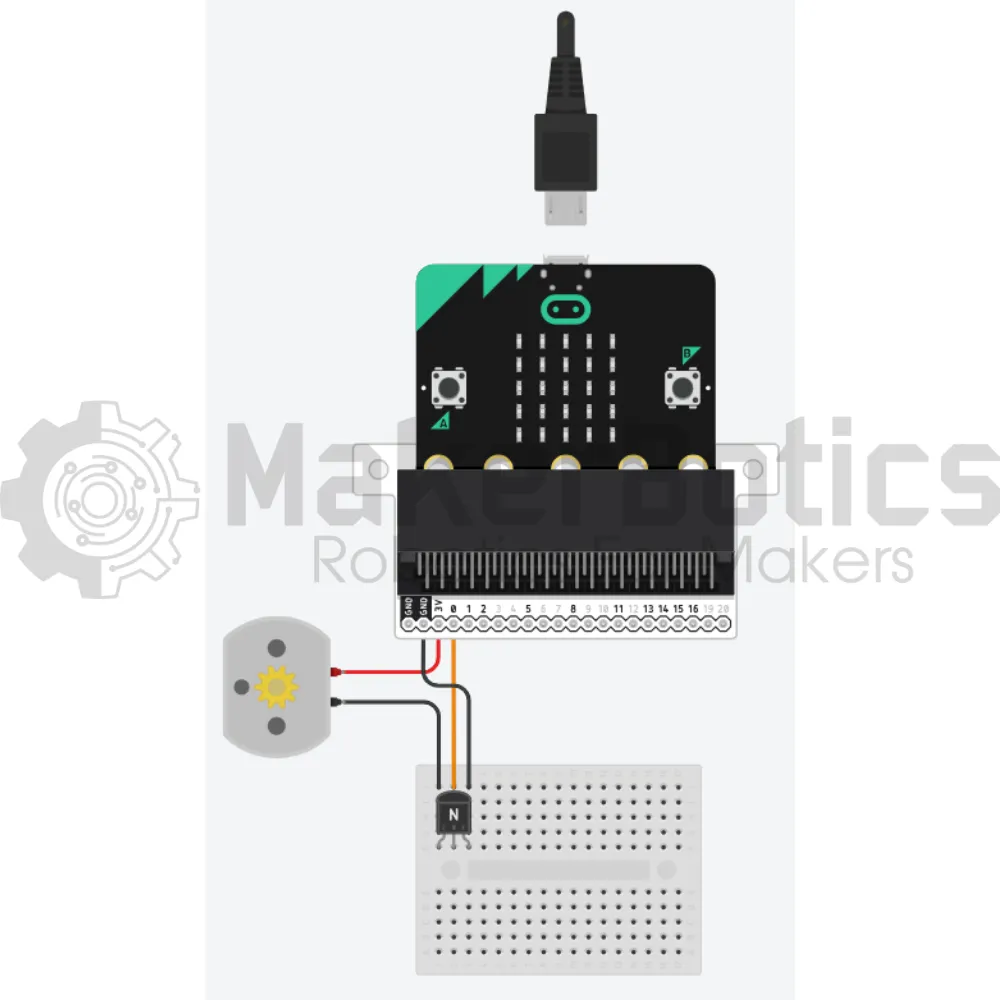
Please refer to the diagram below for wiring. Please note that the circuit diagram uses a different Micro:bit shield than the supplied in our package, despite this, the wiring is the same.
- Place the transistor on the breakout board connect it to pin 0 on the Micro:Bit using the FM jumper wires
- Place the soft leaf fan on the 5V DC motor and connect it to the transistor on the breadboard
- Open Microsoft Makecode
- Plug in the Micro:bit to the computer
Code Walk Through:
Turning the motor on/off:
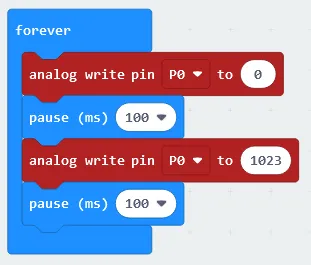
The 5V DC motor's input dictates the amount of volts that will be used to power it, with 0 being no power & 1023 being the maximum power. We can use this to switch the motor on to full power by sending an analog message to the motor’s pin of value 1023, similarly we can turn it off by sending an analog signal of 0 to the motor pin. We can pause the code between on & off so that the motor has enough time to adjust accordingly.
- Turning the motor off: In the Pins tab located under the Advanced section, select “analog write pin (pin number) to (number)” and change it to “analog write pin P0 to 0” before placing it inside the forever block.
- Pausing the code: In the Basic tab select “pause (ms)” and set it to pause for 100 ms before placing it inside the ‘forever’ block
- Turning the motor on: Repeat the step for turning the motor off, but change the value from 0 to 1023(full power)
- Pausing the code: Repeat the pause step and place the code snippet last inside the ‘forever’ block.
Flashing the code onto the Micro:Bit:
- Make sure the Micro:Bit is connected to the computer
- On the bottom left corner, click the “Download” button and follow the prompts
Python Code:
Entire python code for the tutorial:
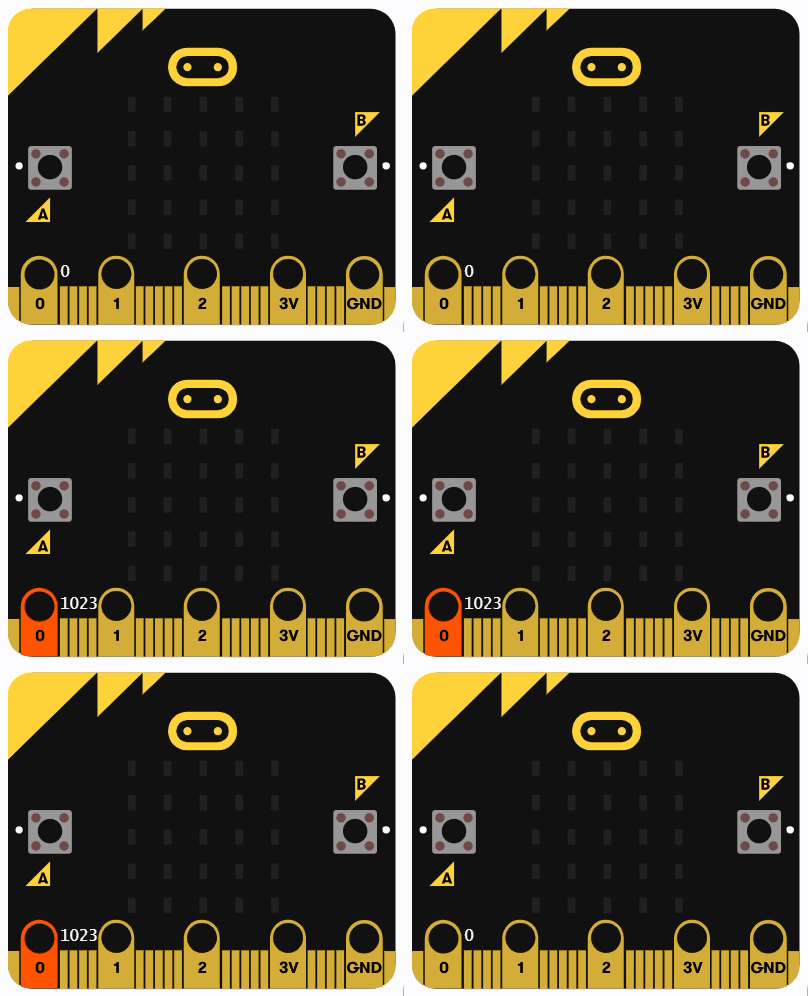
Simulated Fan Speeds:
Simulation of the analog values sent to the motor via pin 0
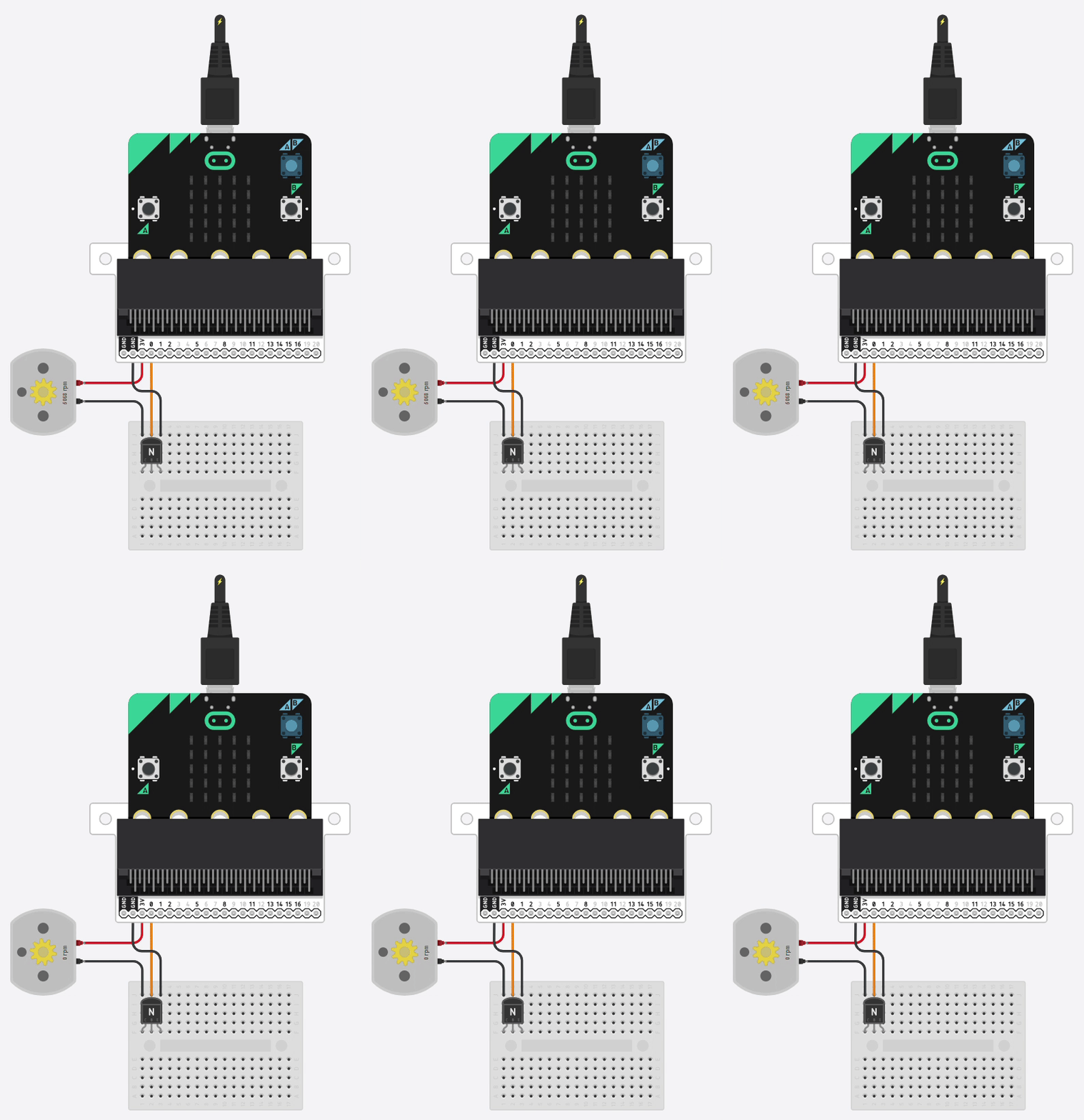
Full Tutorial Simulation:
Tutorial simulation with the DC's motor power displayed in rpm.
Downloadable Content:
Please find this tutorial's python & hex file for microsoft makecode on our Github.
Credits:
- Microsoft
- The Micro:bit Community
- The STEM Community