Micro:Bit Touch Reaction Tutorial
Tutorial Aim:
The aim of this tutorial is to demonstrate how to generate a sound and display a message when a TTP223 capacitive touch sensor is activated on a Robot:Bit v2, by continuously polling the sensor. This project will teach users how to interface the touch sensor digitally with the micro:bit via the Robot:Bit extension, read its digital output by polling in a loop, detect touch activation events, and respond with audio and visual feedback.
Requirements:
This tutorial makes use of the Micro:bit Electronics Learning Package.
Pin Layout:
| Micro:Bit Pins: | Sensor Pins: |
| GND | GND |
| 3.3V | VCC |
| 2 | I/O |
Setup:
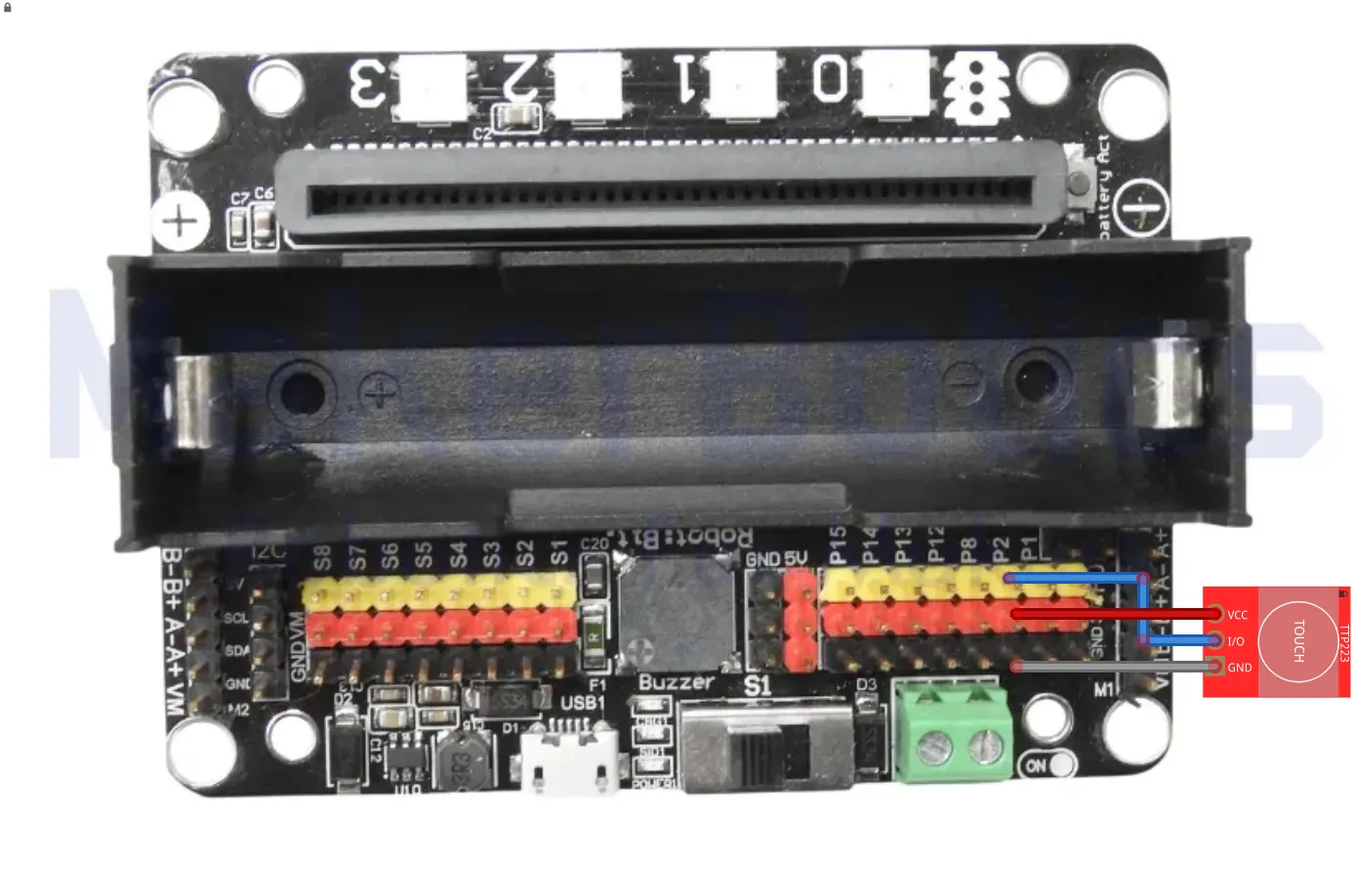
Please refer to image below for wiring.
- Use the FM jumper wires to connect the TTP223 touch sensor to pin2 on the Micro:Bit
- Open Microsoft Makecode
- Plug in the Micro:bit to the computer
Code Walk Through:
Determining if the touch sensor was activated:
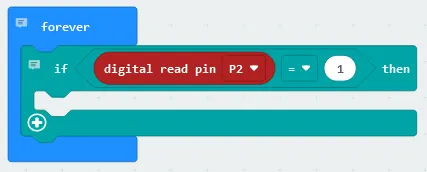
When touch is detected the sensor outputs a reading of 1, otherwise the reading is 0. We can use conditional statements to determine if the touch sensor was activated. The code for this section will go inside the ‘forever’ block.
- Creating a conditional block: In the Logic tab, select the conditional “if true then” and place it in the forever block.
- Checking if touch was detected: Select the comparison block “0 = 0” in the Logic tab and change it to “digital read pin P2 = 1”, where “digital read pin (number)” can be found in the Pins tab under the Advanced section.
Displaying message and activating music when the sensor is triggered:
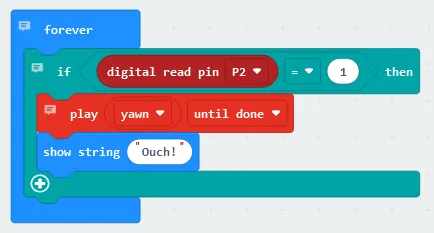
We can indicate when the touch sensor is triggered by playing a music tune & displaying a message on the LED grid. The code for this section will go inside the ‘forever’ block.
- Playing a music tune: Select “play (tune) until done” in the micro:bit (V2) section under the Music tab, change the tune to yawn and place the line underneath the conditional if statement
- Displaying a message: In the Basic tab select “show string”, write the message “Ouch!” and place it under the conditional if statement.
Flashing the code onto the Micro:Bit:
- Make sure the Micro:Bit is connected to the computer
- On the bottom left corner, click the “Download” button and follow the prompts
Python Code:
Simulated Touch Reaction:
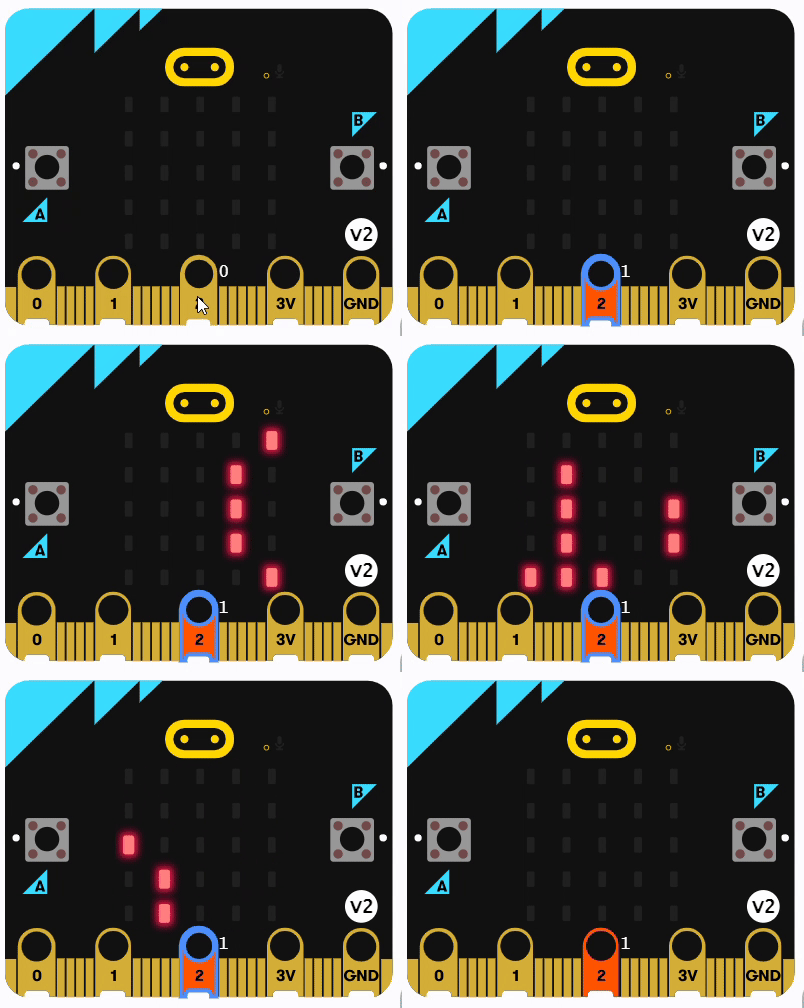
The microbit will scroll through the text ‘ Ouch’ as shown below, and a tone will play at the same time.
Downloadable Content:
Please find this tutorial's python & hex file for microsoft makecode on our Github.
Credits:
- Microsoft
- The Micro:bit Community
- The STEM Community