Micro:Bit Potentiometer Fan Speed Tutorial
Tutorial Aim:
The aim of this tutorial is to demonstrate how to manually control a fan's speed and power percentage using a potentiometer with a micro:bit. By turning the potentiometer clockwise, the fan's speed and power increase, while turning it counterclockwise decreases both. This gives users precise, real-time control over the motor operation using a simple analog input device.
Requirements:
This tutorial makes use of the Micro:bit Electronics Learning Package
- Microsoft MakeCode for micro:bit
- Micro:bit V2
- Micro:bit Robot:bit Expansion Shield V2
- Breakout Board
- 5 FM Jumper Wires
- 5V DC motor
- NPN TIP120 Transistor
- 10K Potentiometer
- Soft Leaf Fan
Pin Layout:
| Micro:Bit Pins: | Potentiometer Pins: |
| GND | GND |
| 3.3V | VCC |
| 1 | OUT |
| Micro:Bit Pins: | Transistor: |
| 0 | Base |
| GND | Emitter |
| DC Motor Pin: GND | Collector |
| Micro:Bit Pins: | 5V DC Motor: |
| 3.3V | VCC |
| Transistor Pin: Emitter | GND |
Setup:
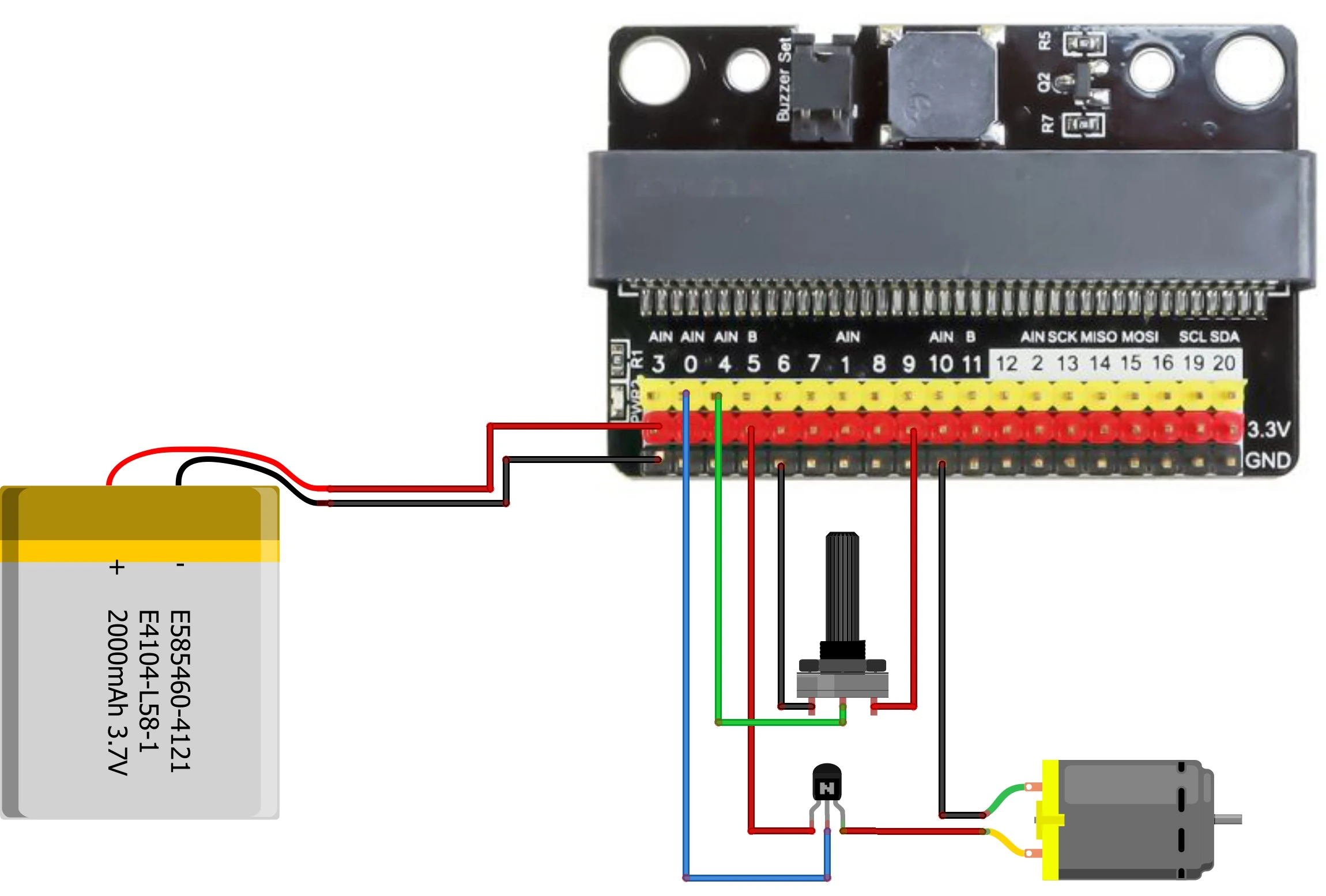
Please refer to the diagram below for wiring. Please note that the circuit diagram uses a different Micro:bit shield than the supplied in our package, despite this, the wiring is the same.
- Attach the soft leave fan onto the 5V DC motor
- Connect the motor to the transistor, and attach the transistor to pin 0 on the Micro:bit using the FM jumper wires
- Connect the potentiometer to the Micro:bit by using the FM jumper wires to attach it to pin 1 on the Micro:bit
- Open Microsoft Makecode
- Plug in the Micro:bit to the computer
Code Walk Through:
Reading the potentiometer:
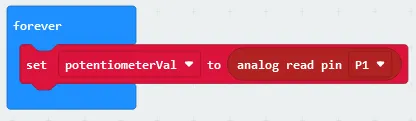
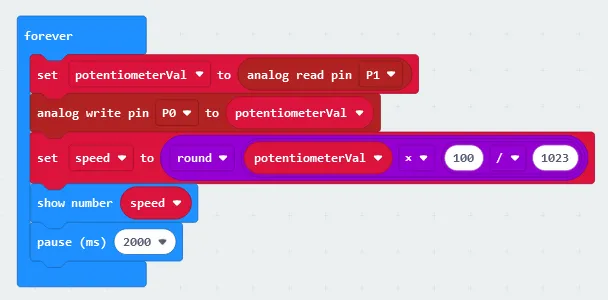
We can access how far the potentiometer was turned by reading the signal value at pin 1.
- Creating & storing the potentiometer reading: In the Variables tab, select “make a Variable” and name it “potentiometerVal”.
- To get the potentiometer reading: In the advanced section in the Pins tab, select “analog read pin (pin number)” and set the pin number to P1.
- To set the potentiometerVal to the reading: In the Variable tab, select “set potentiometerVal to (number)” and drag the analog read pin P1 line inside that code snippet.
- Place this code snippet inside the ‘Forever’ block as first.
Updating the fan speed:
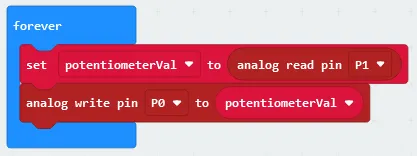
We can adjust the fan speed according to the potentiometer reading by sending a signal to the motor of how much power it should use.
- In the Pins tab, select “analog write pin (pin number) to (value)”
- Change the pin number to P0 and set it to potentiometerVal by dragging the variable (found in the Variables tab) inside the code snippet
Calculating & displaying the speed:
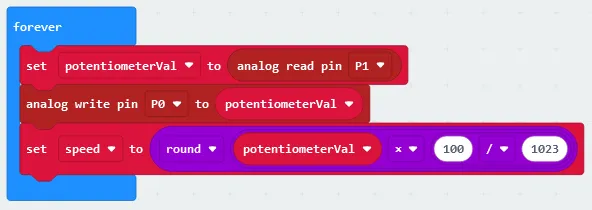
We can calculate the speed as a percentage as we know the max value of the potentiometer reading is 1023, and it can be stored in the variable “speed”
- Creating the variable ‘speed’: Select “Make a New Variable” in the Variables tab & name it ‘speed’.
- To calculate the percentage: Select the following in the math tab:
- “number / number” & change it to “100 / 1023”
- “number x number” & change it to “potentiometerVal x 100 / 1023” by selecting the variable (found in the Variable tab) and dragging it into the code snippet and also dragging the previous line of code into this code snippet
- “round (number)” & change it to “round potentiometerVal x 100 / 1023” by dragging the math expression into the code snippet
- Setting the speed as the percentage: Select “set (variable) to (number)” in the Variables tab, change the variable to speed and drag the math expression we created into the code snippet so that it reads “set speed to round potentiometerVal x 100 / 1023”
- Displaying the speed: Select “show number” in the Basics tab, set it to speed & place it inside the ‘Forever’ block
- Pausing the code: Select “pause (ms)” in the Basic tab, setting it to 2000 and place it last in the ‘Forever’ block.
Displaying the speed:
We can display the speed percentage on the micro:bit's LED grid. The code must be paused so that the speed can be displayed fully before it executes the action.
- Displaying the speed: Select “show number” in the Basics tab, set it to speed & place it inside the ‘Forever’ block
- Pausing the code: Select “pause (ms)” in the Basic tab, setting it to 2000 and place it last in the ‘Forever’ block.
Python Code:
Entire python code for the tutorial:
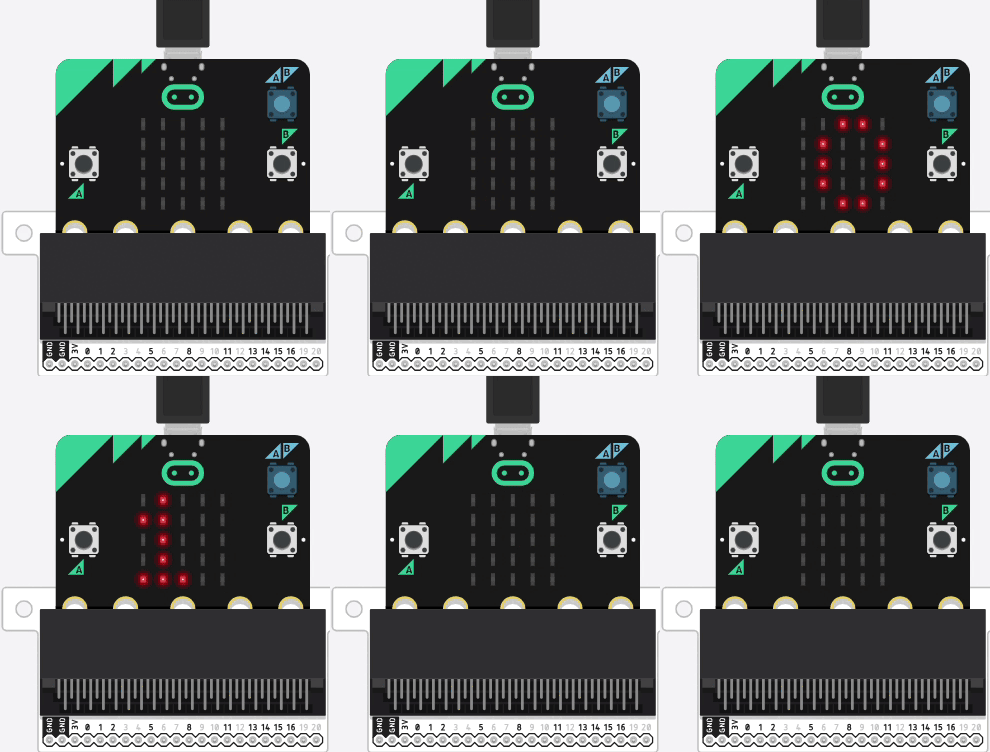
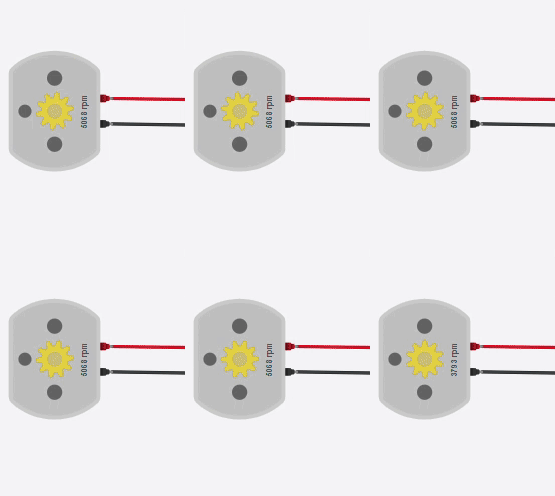
Potentiometer & Motor Simulation:
Displaying how the potentiometer affects the motor's speed.
Downloadable Content:
Please find this tutorial's python & hex file for microsoft makecode on our Github.
Credits:
- Microsoft
- The Micro:bit Community
- The STEM Community